Know what every feature does — and when to use it.
This is the practical side of Corely. Learn how to change your workout plan, use supersets and circuits, anchor an exercise, log food, build a fasting schedule, connect health data, and understand the charts in Progress.
Corely can manage a repeating training plan for you, or you can take control of today's muscle groups without rebuilding everything.
01
Change your plan — or just today's muscles
Use the option that matches how permanent you want the change to be.
Change the repeating plan
Coach Preferences→Plan style
Choose Full body, Full body + cardio, Upper / Lower, Upper / Lower + cardio, Push / Pull / Legs (PPL), PPL + cardio, Cardio only, or Custom split.
Build your own repeating split
Plan style→Custom split
Add and reorder training days. Each day can use 1–3 primary muscles and 0–2 secondary muscles.
Pick different muscles today
Workouts→Quick Workout Builder
Pick the muscle groups you want and how many exercises per muscle. This is the cleanest option when you want a standalone workout instead of changing your repeating split.
Example: If your regular PPL cycle says Pull but you want to train Push today, use Quick Workout Builder for a one-off change. If you want the order or structure changed going forward, edit Plan style or your Custom Split.
Already started today's workout? Corely protects an active session from being silently rewritten. Preference changes are intended to affect the next rebuilt or future workout instead.
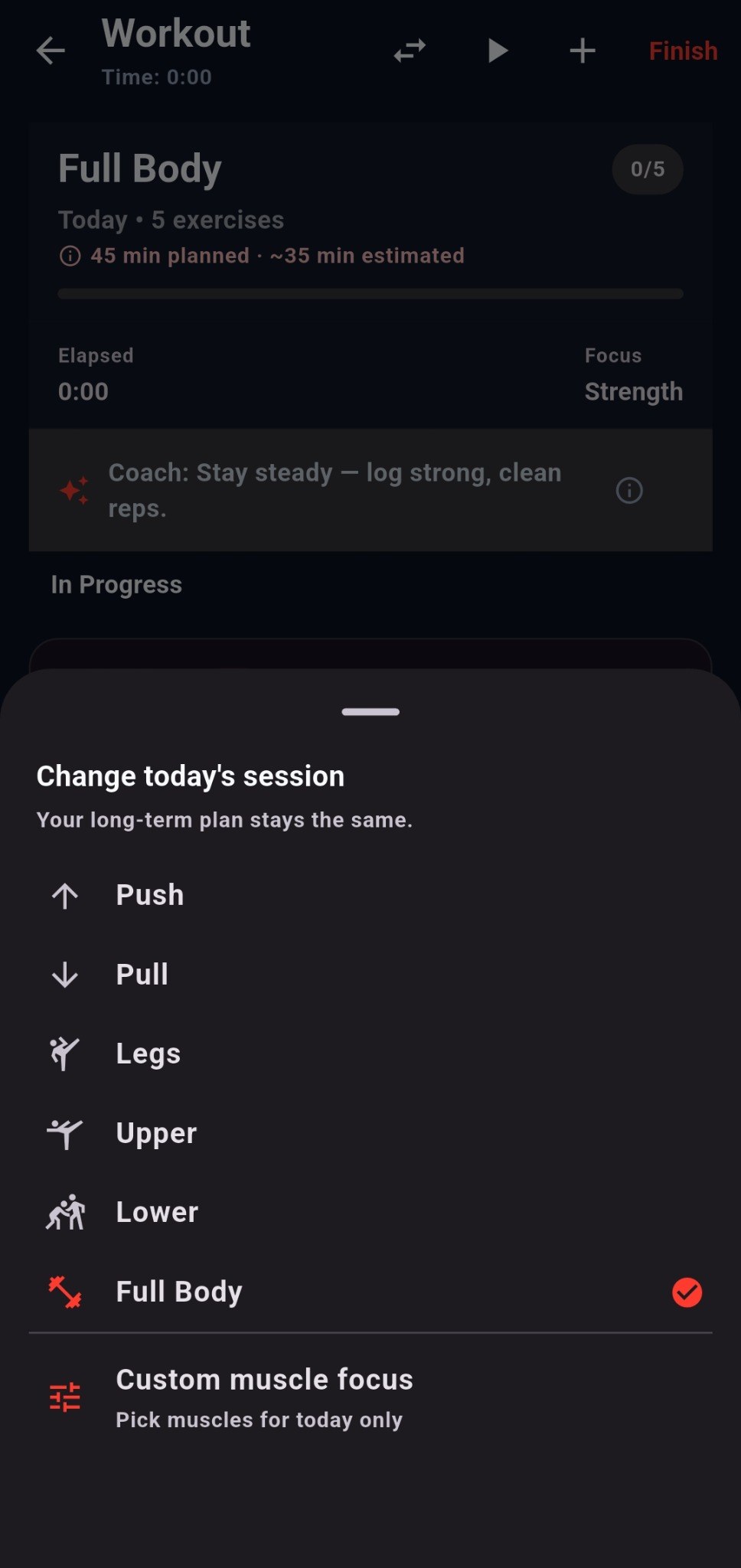
Already on a workout? Use Change today's session for a one-day switch. Your long-term plan stays the same.
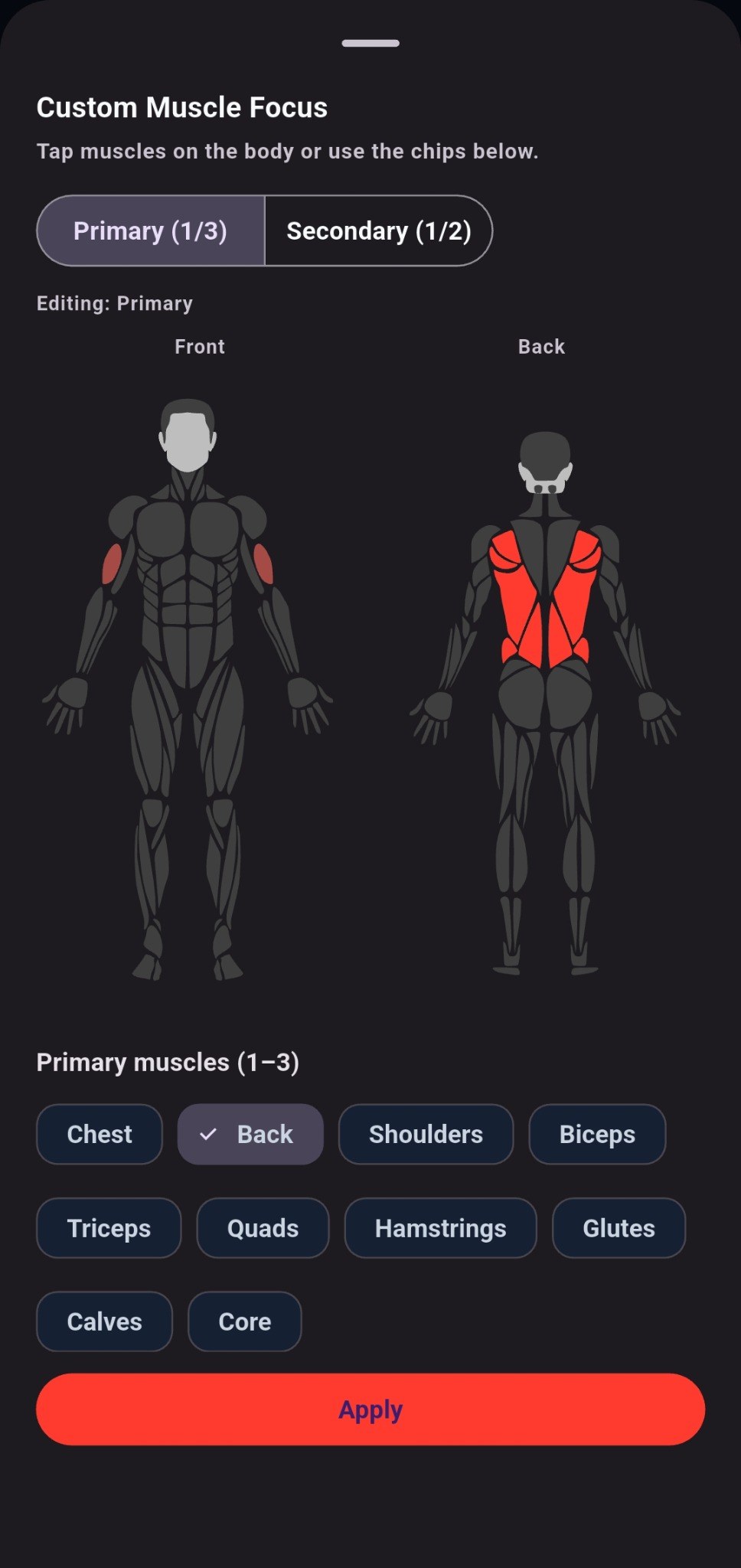
Custom muscle focus lets you choose 1–3 primary muscles and up to 2 secondary muscles for today without rebuilding your recurring plan.
One day vs. long term
Use the session switch when plans change
The session menu is the fastest way to switch to Push, Pull, Legs, Upper, Lower, Full Body, or a custom muscle focus for today. For a lasting schedule change, edit your Plan style or Custom Split instead.
Good use case: equipment is busy, a muscle is sore, you missed yesterday, or you simply want a different focus today.
02
Supersets and circuits
Both group exercises, but the flow is different.
Superset
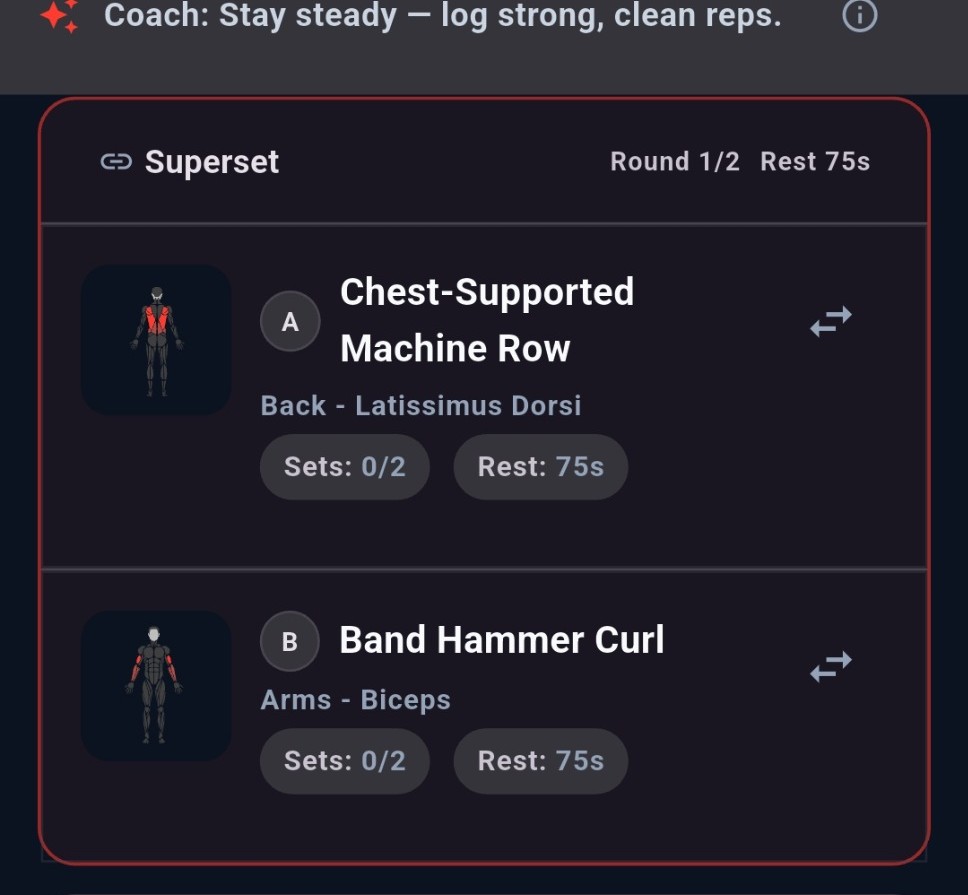
Two exercises, alternating in rounds
Corely pairs exercises into an A/B sequence. Complete A, move to B, then repeat the pair for the planned rounds. Rest is handled around the group instead of treating each movement as an unrelated block.
Circuit
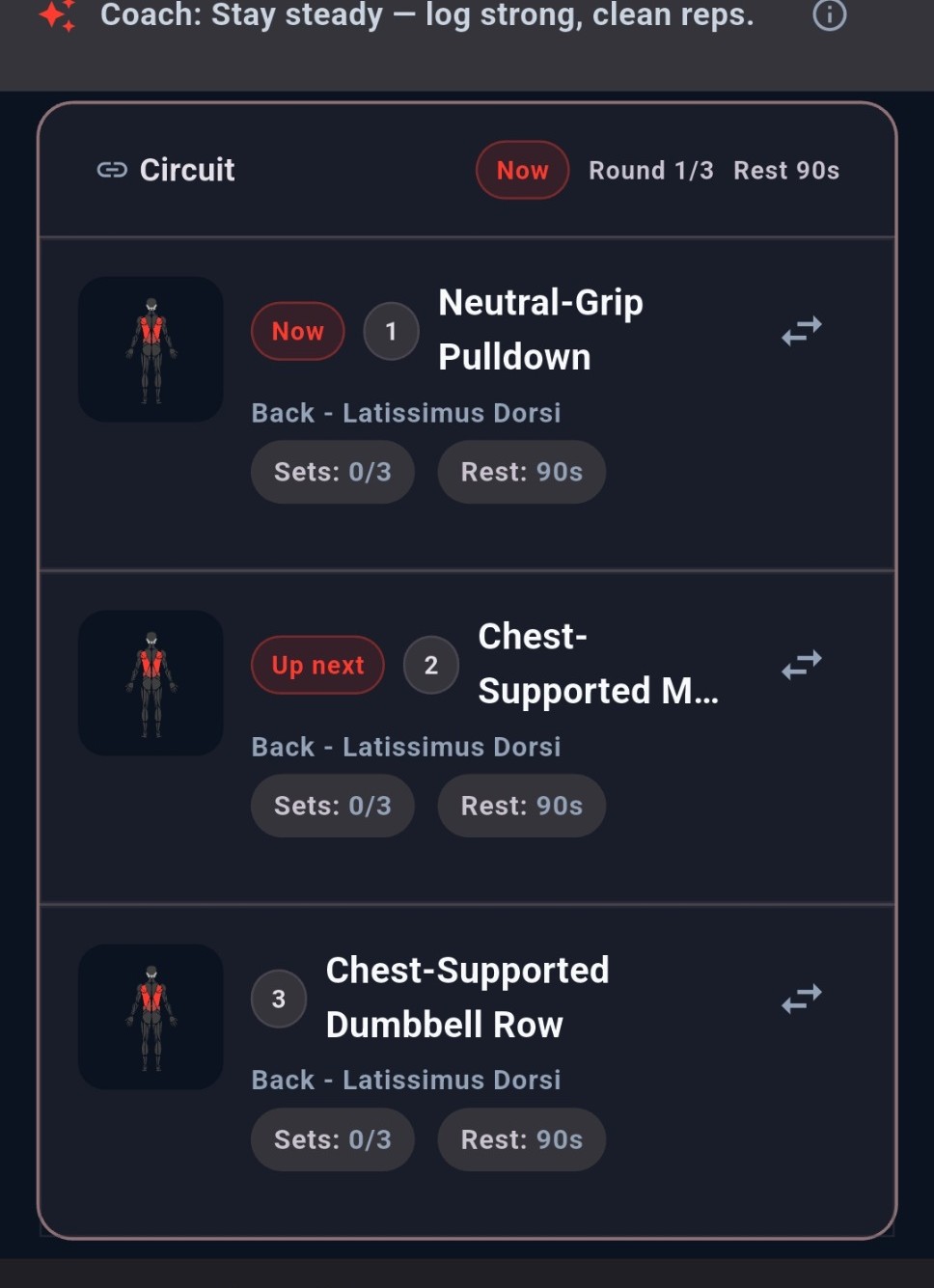
Multiple exercises in a repeated loop
A circuit groups several movements. Corely keeps track of the active station, what comes next, the current round, and circuit rest so you can keep moving without losing your place.
Settings→Workout Structure→Supersets or Circuit Mode
The current app keeps Supersets and Circuit Mode mutually exclusive. Smart grouping availability can depend on your Corely plan.
03
Warm-up sets
Let Corely add preparation sets only when they are useful.
Coach Preferences→Warm-up sets→Auto / Off
Auto adds lighter preparation sets before suitable weighted exercises. A normal weighted movement typically gets one lighter set. Heavy primary barbell, rack, or Smith work in a low-rep range can get two progressive warm-up sets.
Corely skips automatic warm-ups for isolation movements, timed exercises, band-only work, pure bodyweight work, or recovery-week sessions.
Very short sessions keep warm-up volume tighter.
Warm-up sets are preparation — they do not count as working-set volume, PRs, progression, or working-set completion.
Typical Auto behavior
Warm-up lighter load × comfortable repsOptional 2nd warm-up for heavy low-rep primary workWorking sets your planned training load
04
Anchor an exercise and control how often it appears
Exercise preferences tell the generator how strongly you want — or do not want — a movement.
Exercise Library→Select an exercise→Exercise preference
Always include
Reserves a slot whenever the exercise is compatible with today's split, equipment, and recovery. Anchors are also protected from time-budget trimming.
Prefer
Gives the exercise a positive selection bias. It should appear more often when it fits, but it is not guaranteed.
Normal
The default selection behavior.
Less often
Keeps the exercise available while making it less likely to be selected.
Exclude
Prevents the exercise from appearing in generated workouts.
Anchor is intentionally conditional. “Always include” does not force a chest exercise into a leg day or an unavailable-equipment exercise into a home workout. It reserves the slot when the exercise actually fits.
Use Exercise Library preferences when you want the generator to remember your exercise choices.
05
Progression: how Corely decides what comes next
Progression rules turn your logged performance into a sensible next target.
Settings→Progression
Double progression
Reach the top of the rep range across your sets, then add weight and build reps again.
Reps-first
Add reps first; once you reach the maximum, increase the load. Useful for controlled accessory or isolation work.
Load-first
Increase weight once you can meet the minimum reps. More strength-biased.
Top set + backoff
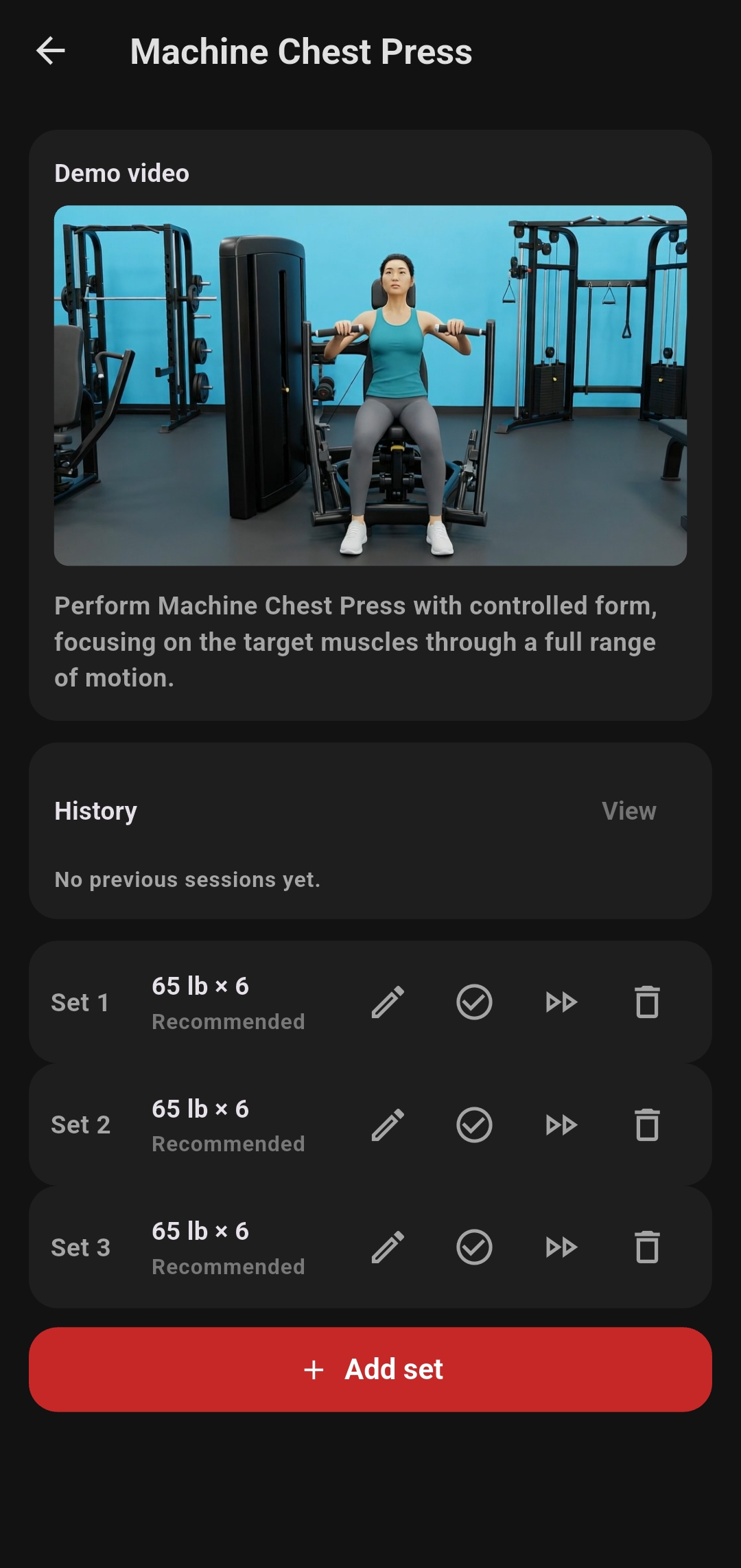
One heavier top set followed by lighter sets that control fatigue. The default role-based choice for primary lifts.
% e1RM
Uses your estimated one-rep max to choose a target load. It becomes more useful as Corely gets reliable logged history.
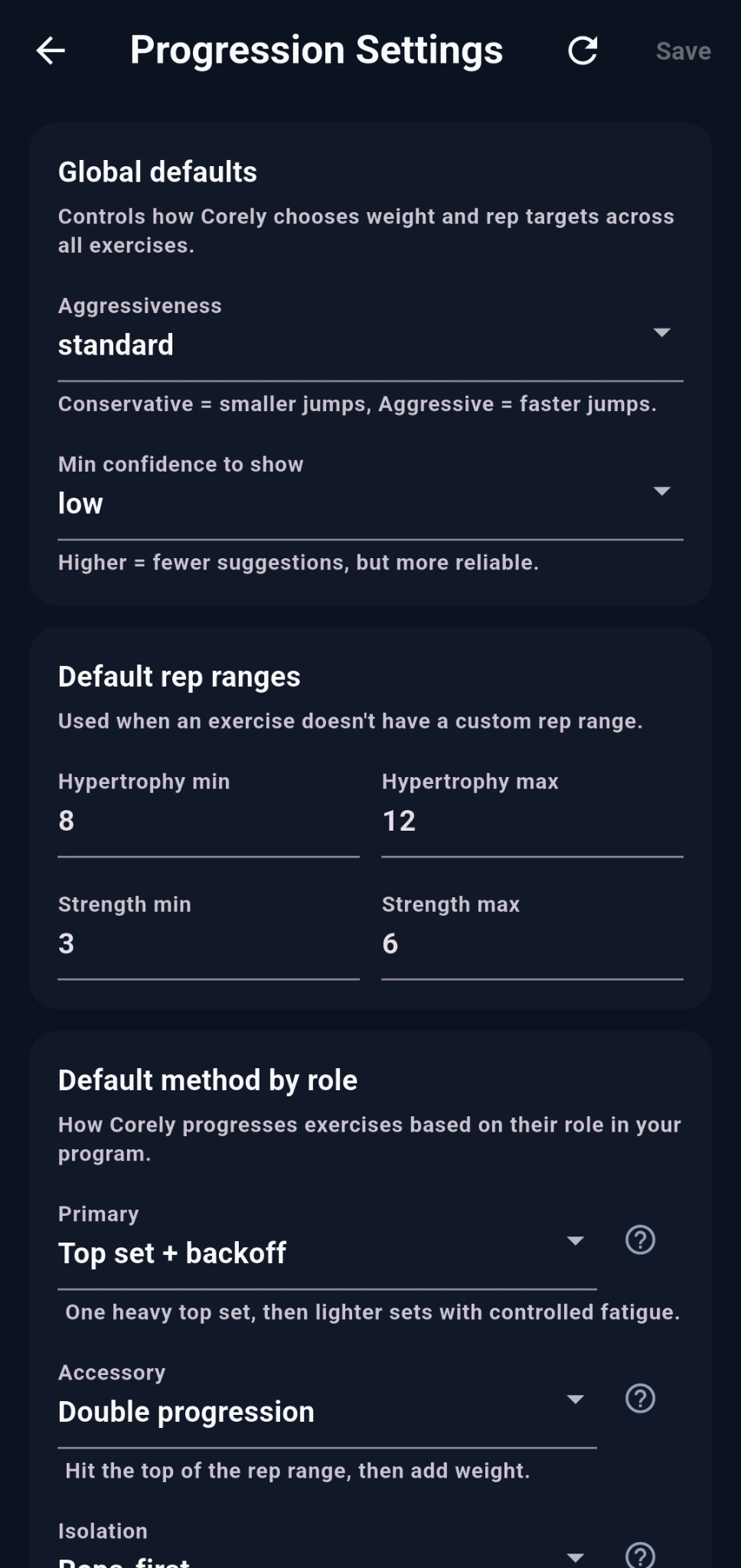
You can also control progression aggressiveness, confidence threshold, strength and hypertrophy rep ranges, method by exercise role, and load increments/rounding.
Progression settings let you choose the rules Corely uses instead of relying on one progression style for every exercise.
Nutrition
Three ways to log food
Use the fastest method for the information you have: search the food, scan the package, or enter the macros directly.
06
Search, barcode, or Quick add
They all create a nutrition log entry, but they start from different information.
Search food
Search by product or food name. Recent foods and Favorites make repeat logging faster. Open the result, choose the serving, and add it.
Scan barcode
Open Search food and tap the barcode icon. Corely supports common UPC/EAN package barcodes. Confirm the matched product and serving before logging.
Quick add
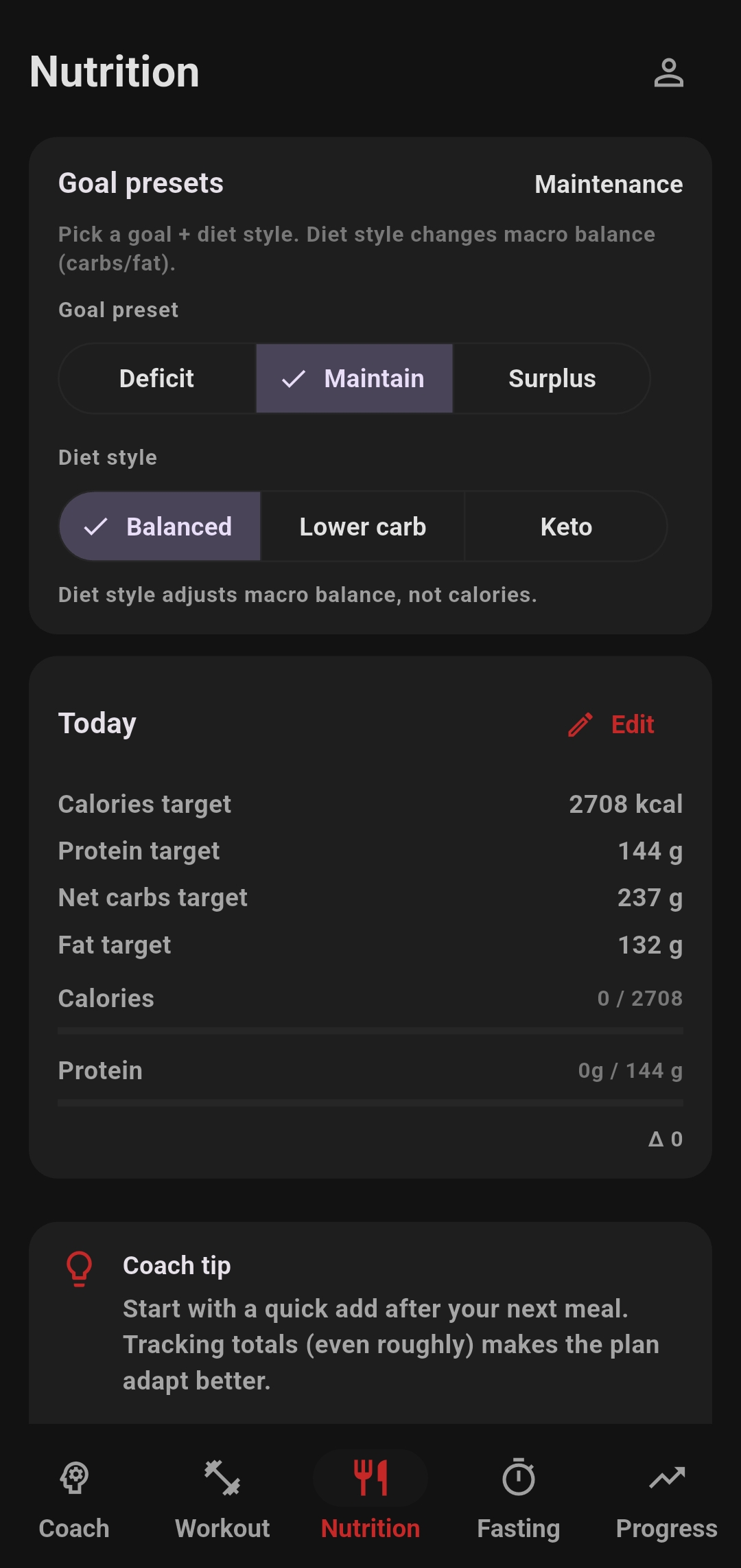
Use this when you already know the numbers. Enter Calories, Protein, Net carbs, and Fat without searching for a product.
If a barcode is not found: Corely offers the manual path instead of blocking the log. Barcode databases are never complete, so checking the label and serving is still important.
Serving size matters
A food can be stored with nutrition per 100 g while your package serving is much smaller. In the food detail sheet, choose a listed serving or enter grams. Corely scales calories and macros to the amount you actually eat.
Nutrition logging is designed around choosing the quickest input method without giving up serving-size control.
Fasting
Build your own schedule or use a preset
Corely separates a manual recurring plan from scheduled preset plans so your week can be as simple or as customized as you want.
07
Manual plan vs scheduled presets
Both create recurring fasting windows; the setup experience is different.
Manual plan
Build the week yourself
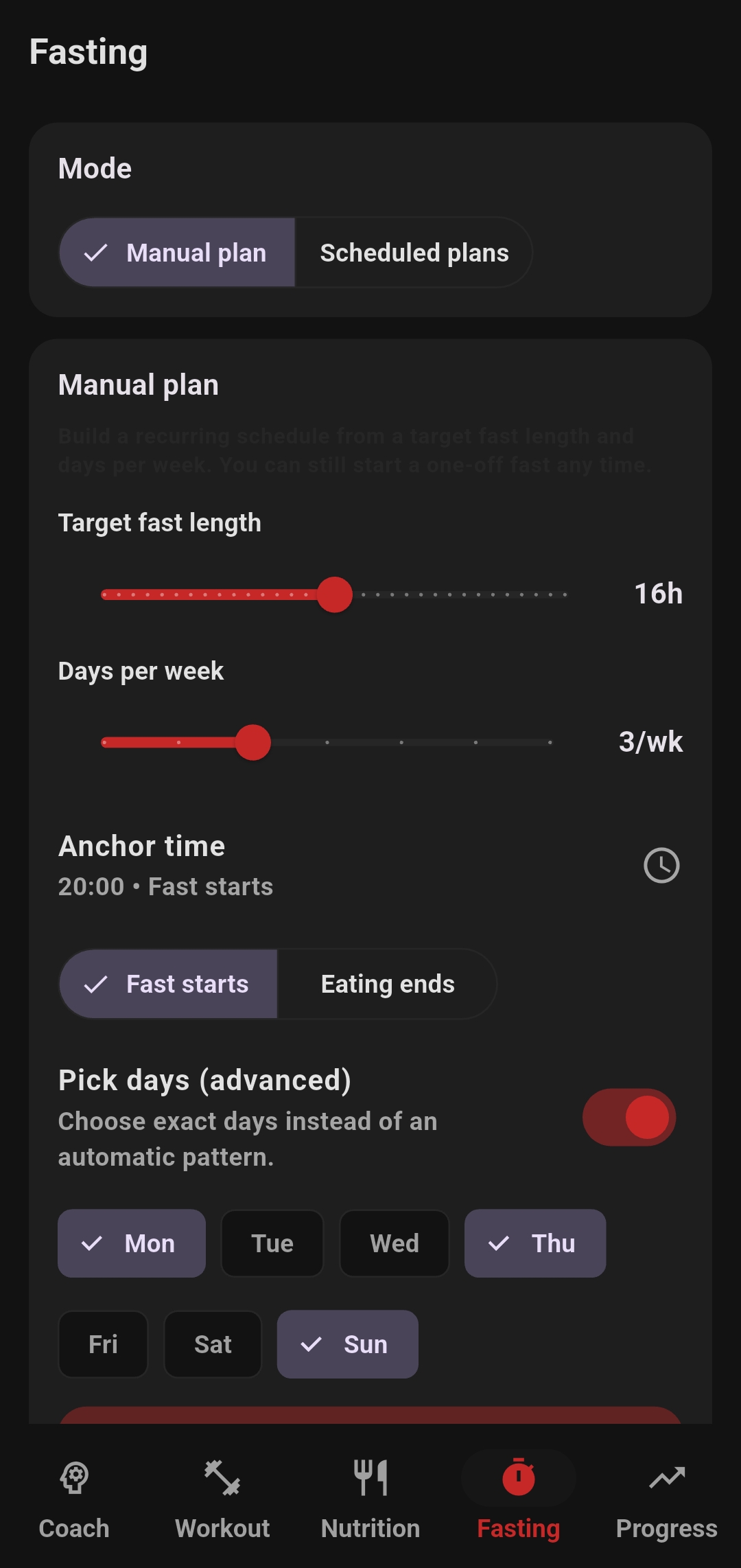
Choose a target fasting length, an anchor time, whether the anchor represents when the fast starts or ends, and which days are active. You can tap an individual day to customize its start/end times.
Scheduled plans
Start from a recurring preset
Choose from patterns such as 12-hour daily, 16:8, 18:6, 20:4, OMAD, weekday schedules, weekly 24-hour fasts, or other mixed recurring plans. Scheduled presets are Pro in the current app build.
When you are ready to begin outside the automatic timing, use Start fasting now where available. If you break a fast early, Corely stops today's reminders and automatically returns to the next scheduled window.
Tip: A preset is a starting structure, not a score. Pick the schedule that fits your week rather than the one with the longest fasting window.
Your fasting screen shows the current window and recurring schedule so you can see when fasting and eating periods are planned.
Health & weight
Bring activity and body metrics into the same picture
On iPhone, Corely can connect to Apple Health. On Android, it can connect through Health Connect.
08
Apple Health / Health Connect
You choose what Corely can read and what it can write.
ReadWorkouts
Bring recent training activity into Corely.
ReadActive calories
Use device-recorded activity energy where available.
ReadSteps
Bring daily movement into Activity and coaching context.
ReadBody metrics
Import weight, body-fat %, lean mass, and BMR when the provider has them.
WriteCorely workouts
Export completed Corely workouts back to your health provider when enabled.
Auto-sync imports recent activity when you open the app, with the app limiting automatic refreshes to roughly every six hours. You can also use Sync now, Export now, or open the provider permissions directly. Disconnecting Corely does not replace the system-level permission controls; you can revoke those in Apple Health or Health Connect.
09
Weight log
Manual weigh-ins and imported body metrics can live in one history.
Settings→Weight log
Choose 7d or 30d
Use 7 days for recent movement and 30 days to see a steadier direction.
Switch the metric
View Weight, Body fat, Lean mass, or BMR when those values are available.
Read left to right
Points are chronological. Focus on the direction across multiple readings instead of one daily fluctuation.
Know the source
Entries can come from manual logging, Apple Health, or Health Connect.
Progress
How to read the charts
Progress is meant to show direction, not create another streak to protect. Use 7d, 30d, or 90d ranges to zoom in or out.
10
Weekly effort
A training-load signal — not calories and not a percentage score.
Effort is a unitless score that estimates how much weighted work you did. It rises when you lift heavier, perform more reps, or train closer to failure with a higher RPE. When RPE is missing, Corely treats it as moderate effort.
Line — your 7-day rolling average, which smooths noisy day-to-day changes.
Band — your typical variability around that average (about ±1 standard deviation).
“Sustainable load” means your recent effort is not running more than roughly 10% above its baseline. A short increase can be normal; staying elevated is a reason to pay more attention to recovery.
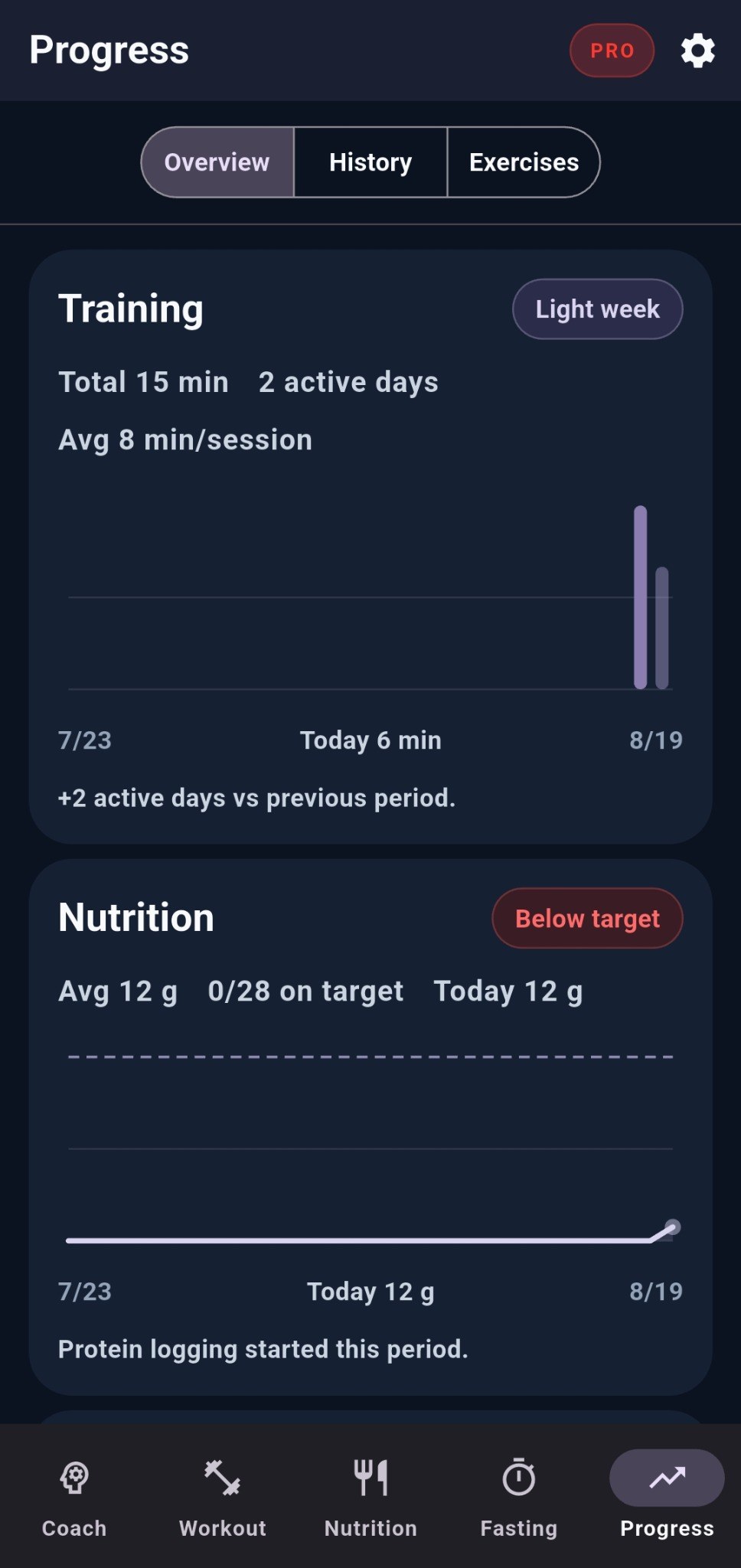
Overview summarizes training, nutrition, fasting, and related trends. Use the longer ranges to judge direction rather than one isolated day.
11
Training trend
How much training you completed across the selected range.
The bars show daily workout minutes. If Corely does not have reliable tracked minutes but does have logged sets, the chart can fall back to sets.
Under the chart, use Total, Active days, and Avg/session for context. The comparison text tells you how the current window changed from the previous one.
12
Nutrition trend
Protein consistency against your current target.
The line is your daily protein in grams; the guide shows the target. Read the pattern by asking whether your intake is repeatedly near the target rather than judging one meal or one day.
The summary shows average grams, days on target, and the latest value.
13
Fasting trend
Duration and schedule consistency across the selected period.
Each bar is fasting hours for that day. The summary gives average hours, how many scheduled windows were hit, and your best duration.
The comparison footer shows the direction versus the previous period. If fasting is paused, interpret the gap as a schedule state — not as a failed streak.
14
History and Exercises
Use Overview for the big picture, then drill into what created it.
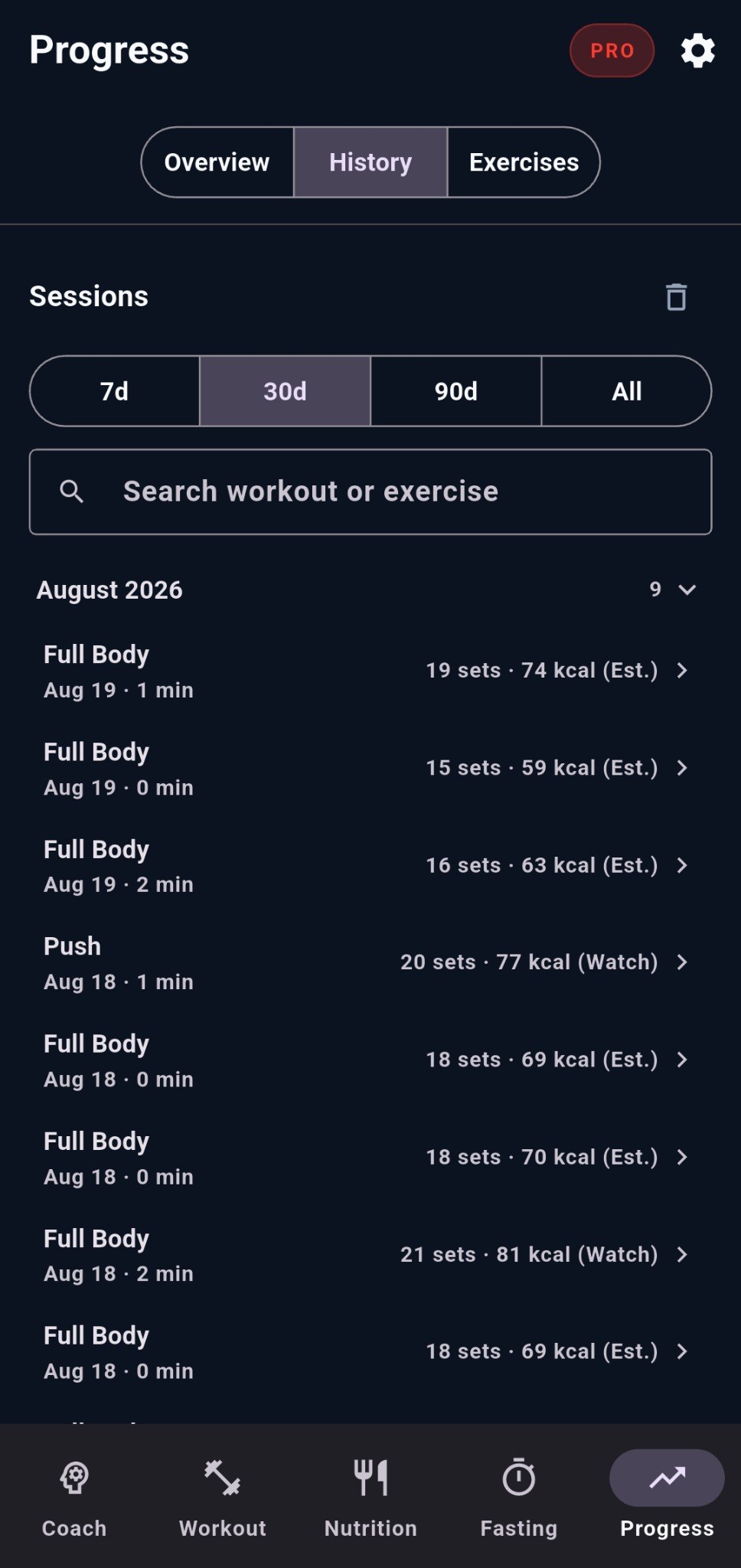
History
Find what you actually did
Search completed workouts and exercises. Grouped work such as supersets stays recognizable in the history rather than becoming a flat list.
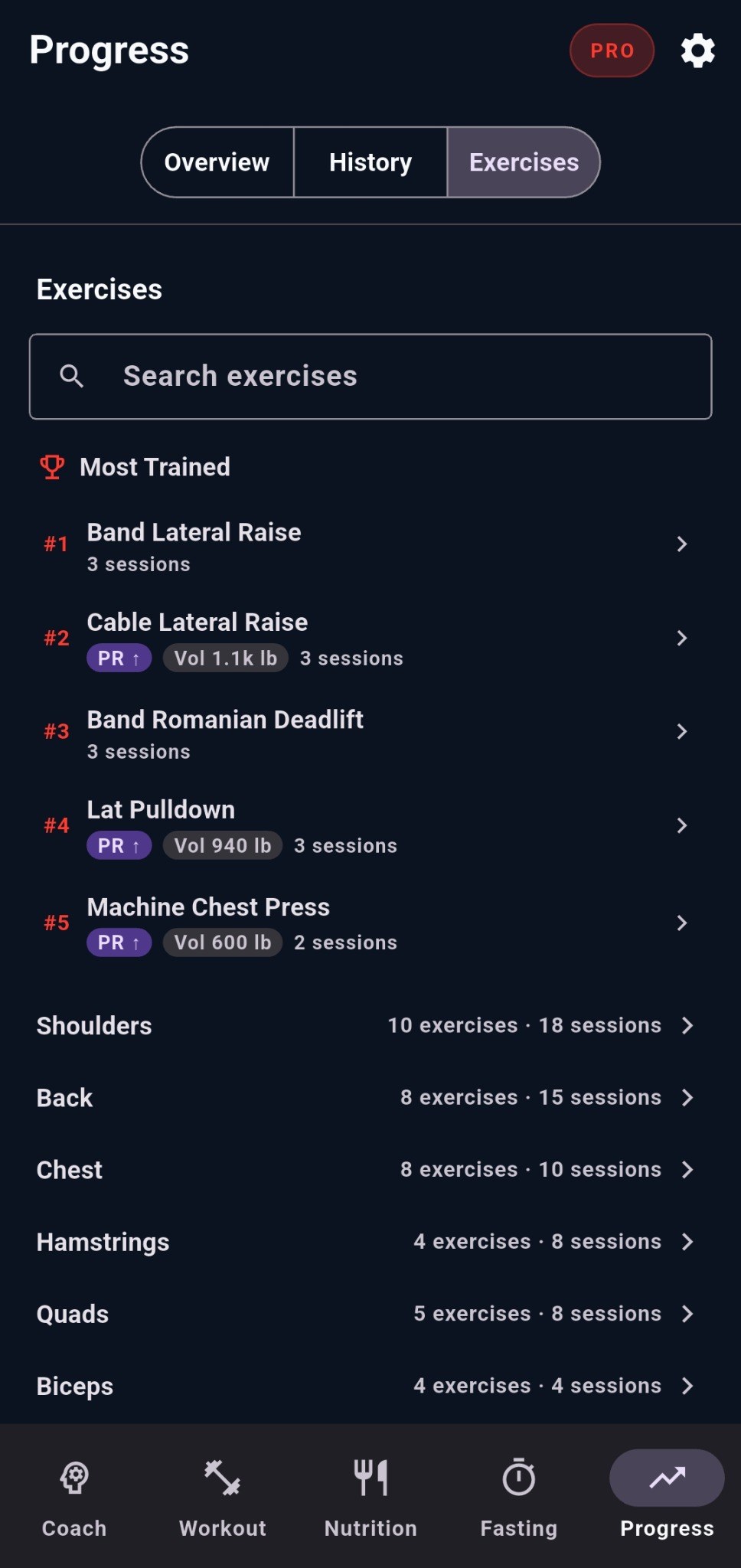
Exercises
Follow individual movements
Exercise summaries can show trend direction, recent PR indicators, recent volume, and session count so you can separate “I trained more” from “this lift is actually progressing.”
History: filter by 7d, 30d, 90d, or All, search workouts or exercises, then open a session for its details.Exercises: see Most Trained, PR and volume badges, session counts, and drill down by muscle group or individual exercise.
Common questions
Fast answers
I anchored an exercise. Why did it not appear today?
An anchor reserves a slot when the exercise is compatible with the day's muscles, equipment, and recovery. It does not force an incompatible exercise into the workout.
My plan says Pull today, but I want Push. What should I do?
For a one-off change, use Quick Workout Builder and pick the muscle groups you want. If you want the repeating plan changed, edit Plan style or build/reorder a Custom Split.
The barcode food shows nutrition per 100 g. How do I log one serving?
Open the product detail and choose the package serving when available, or enter the grams you ate. Corely scales the stored nutrition to the selected amount.
Do warm-up sets count toward my volume or progression?
No. Auto-generated warm-up sets are preparation sets and are kept out of working-set volume, PR, progression, and completion calculations.
Why is Health Connect or Apple Health data missing?
Check that the relevant read permission is enabled, then use Sync now. On Android, Health Connect must be available and authorized. You can also open the provider permissions from Corely to verify system access.
No matching guide topics
Try a broader term such as “workout”, “food”, “fasting”, “health”, or “progress”.
Still exploring?
Learn the feature, then use it your way.
The feature pages explain the bigger idea behind Corely. This guide is here when you need the practical “where is it and what does it mean?” answer.